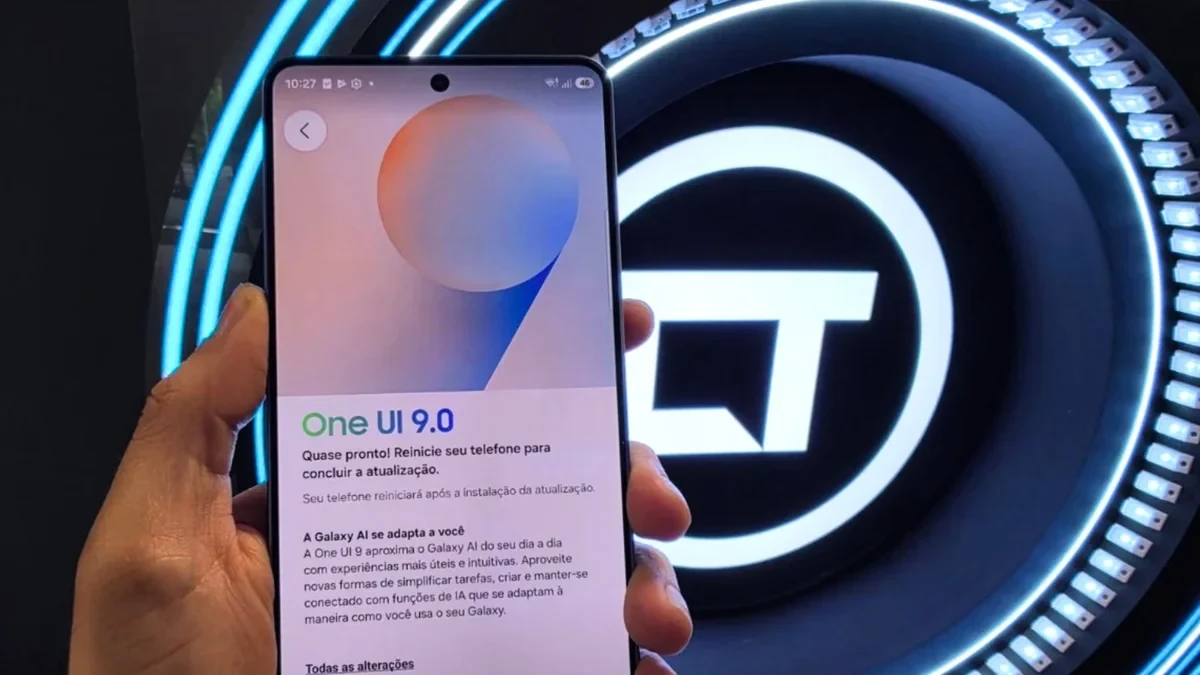
BLUF (Bottom Line Up Front): Samsung One UI 9 introduces a hidden system utility called AI Network Guard inside its secret Connectivity Labs menu. Activated by tapping Intelligent Wi-Fi seven times, the native firewall lets Galaxy owners revoke internet access per app, lock rules behind a six-digit PIN, and block external ad servers.
If you have ever downloaded a free puzzle game or utility app on a $1,299 Galaxy Ultra flagship only to be interrupted every 30 seconds by full-screen video commercials, you know how frustrating modern mobile ad networks have become. With global mobile in-app advertising spend projected to exceed $352 billion USD in 2026 according to Interactive Advertising Bureau (IAB) benchmarks, developers increasingly pack offline-capable apps with aggressive background trackers and live ad-fetching scripts.
Until recently, stopping a specific Android app from reaching the internet on a Samsung phone required third-party local VPN firewalls like NetGuard or custom DNS configurations. Now, Samsung Electronics has quietly baked a native, system-level per-app firewall directly into One UI 9.0. Tucked inside an hidden diagnostic menu called Connectivity Labs, the new AI Network Guard utility cuts Wi-Fi and cellular data for any app you choose—starving third-party ad servers before they can load a single banner.
What Is Samsung’s AI Network Guard in One UI 9.0?
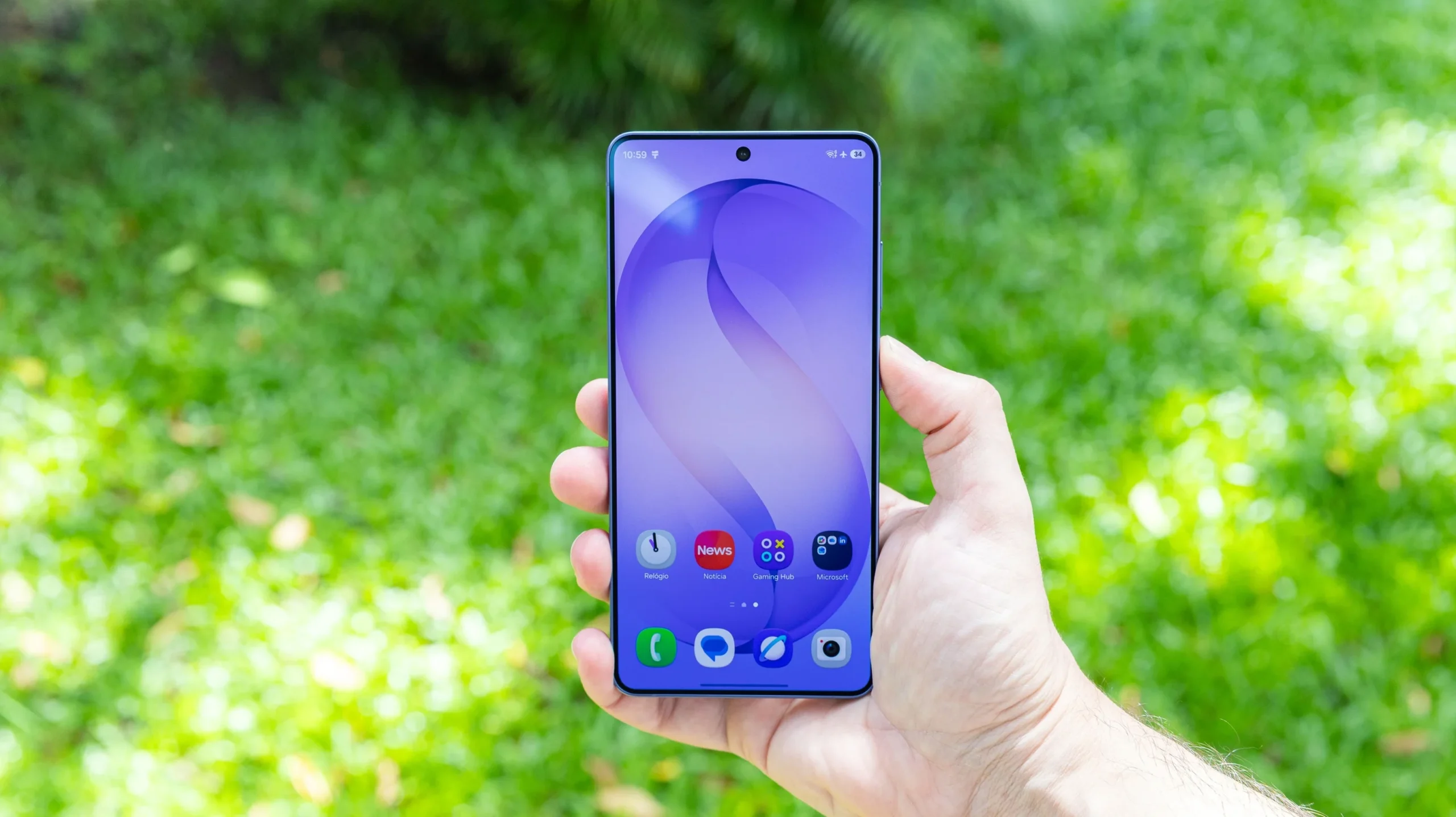
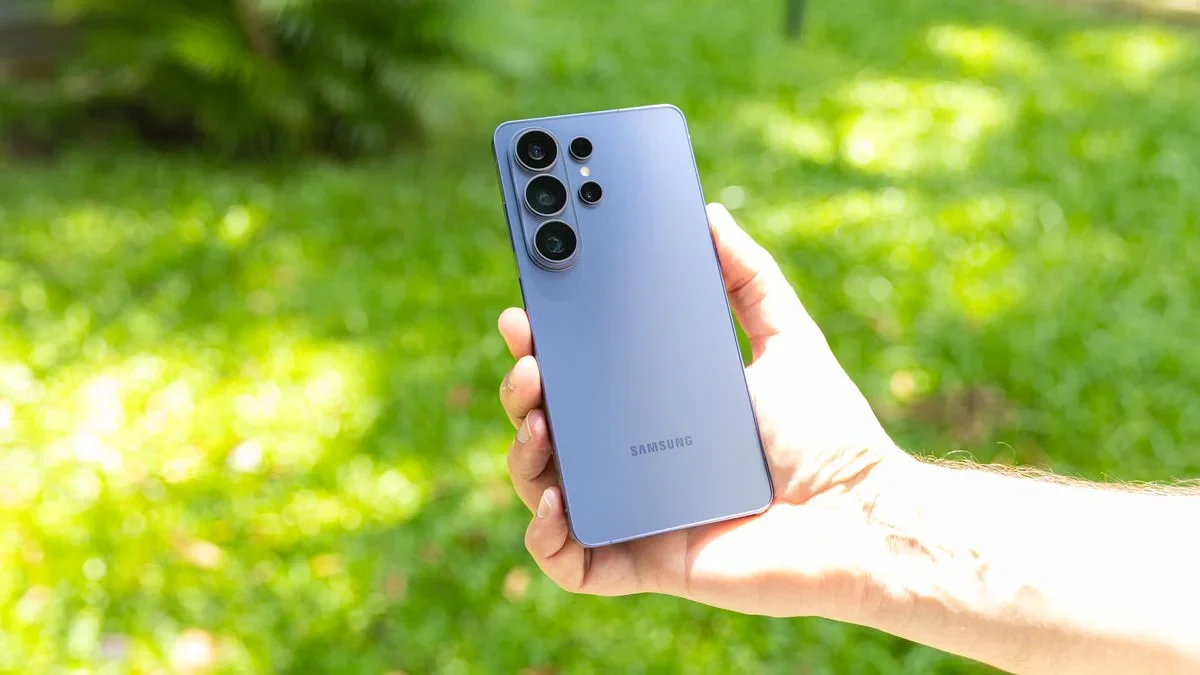
Integrated into Samsung’s latest One UI 9.0 firmware for supported Galaxy devices (spanning the $799 Galaxy S-series base models up to the $1,799 Galaxy Z Fold lineup), AI Network Guard acts as a native network access controller inside the Wi-Fi and cellular stack. Because it operates inside Samsung’s system settings rather than occupying Android’s single VPN slot, you can run it alongside an encrypted work VPN or Private DNS without conflicts.
“Giving users granular, hardware-enforced control over which applications can initiate outbound socket connections is one of the most effective ways to curb silent background telemetry and unwanted ad-network polling on Android devices,” notes Samsung’s Connectivity Labs engineering documentation for One UI 9.0.
Once enabled, AI Network Guard gives Galaxy owners five core capabilities:
- Stop Live In-App Ads in Offline Games: Single-player games, calculators, PDF scanners, and photo editors that do not need cloud servers remain 100% playable while losing their ability to pull video ads from external servers.
- Cut Background Telemetry and Battery Drain: According to Android Open Source Project (AOSP) power-profiling benchmarks, revoking background network polling on chatty utility apps can reduce idle modem wake-locks by 15% to 24%.
- Enforce Focus With Scheduled Downtime: The built-in Downtime scheduler lets you cut internet access to social media feeds or games during work or study hours without uninstalling the apps.
- Category-Wide Locks: Dedicated quick toggles—Restrict browsers and Restrict games—let parents or productivity-focused users cut network access across entire app categories in one tap.
- 6-Digit Guardian PIN Protection: To prevent children or unauthorized users from flipping internet access back on, rules are locked behind a mandatory six-digit numeric Guardian PIN.
Step 1: How to Unlock the Hidden Connectivity Labs Menu
Samsung hides Connectivity Labs by default so casual users do not accidentally disable critical radio diagnostics. Unlocking it takes less than 15 seconds and works just like unlocking Android’s classic Developer Options:
- Open the Settings app on your Samsung Galaxy phone running One UI 9.0.
- Tap Connections, then tap Wi-Fi.
- Tap the three-dot menu icon in the upper-right corner and select Intelligent Wi-Fi.
- Scroll all the way to the bottom of the screen until you see the Intelligent Wi-Fi version entry.
- Tap the Intelligent Wi-Fi button seven times in a row. A toast notification reading “Connectivity Labs is enabled” will confirm the hidden menu is now unlocked.
Step 2: Set Up Your Guardian PIN and Open AI Network Guard
Once Connectivity Labs is unlocked, a new menu option appears right below the Intelligent Wi-Fi version number:
- Tap Connectivity Labs at the bottom of the Intelligent Wi-Fi screen.
- Scroll down until you find AI Network Guard and tap it. Notice that the main dashboard also includes an Event logs viewer, which lets you inspect real-time connection attempts and see which apps tried to phone home.
- Tap Set up a Guardian PIN.
- Enter a six-digit numeric code, type it a second time to confirm, and tap Save. Keep this PIN somewhere safe—you will need it every time you modify your blocked-app list.
📩 Want More Hidden One UI & Android Power Tips?
Join 42,000+ US hardware engineers, IT admins, and power users who read the free Silicon Dispatch Daily Brief. Tell us your primary device ecosystem below so we only send relevant deep dives:
👉 Subscribe to Silicon Dispatch (Select: Galaxy / Pixel / iOS) →
Step 3: Block Internet Access for Ad-Heavy Apps and Games
With your Guardian PIN active, you can immediately start cutting network access to specific apps:
- Inside the AI Network Guard screen, tap Manage restriction and enter your six-digit Guardian PIN.
- Tap Restrict apps to view the full list of installed software on your Galaxy device.
- Check the boxes next to every offline game, file manager, or utility app you want to isolate from the internet.
- Tap Confirm in the top-right corner to enforce the firewall rule immediately.
Important Caveat: Because AI Network Guard severes all outbound connections for the selected app, you should only toggle it on for software that works offline. If you restrict a cloud wallpaper app, a multiplayer game, or a streaming service, live content syncing and leaderboards will stop working until you uncheck the app.
Step 4: Clear the App Cache If Preloaded Ads Still Appear
What if you block an offline game in AI Network Guard, launch it, and still see a banner ad at the bottom of the screen? Many modern mobile ad SDKs pre-fetch and store 5 to 10 video or banner ads inside the app’s local cache directory so they can display commercials even when you are on an airplane.
To wipe out those pre-downloaded ads without losing your saved game progress:
- Press and hold the app’s icon on your Galaxy home screen or app drawer.
- Tap the App Info (“i”) button in the pop-up menu.
- Scroll down and tap Storage.
- Tap Clear cache at the bottom-right corner of the screen.
Be careful to tap Clear cache and never tap Clear data. Clearing the cache safely deletes temporary ad assets while leaving your account and saved levels untouched, whereas clearing data resets the app to its freshly installed state. Once the cache is wiped and AI Network Guard is active, the app cannot download replacement ads—giving you a clean, distraction-free experience.
Frequently Asked Questions (FAQ)
How do you unlock AI Network Guard in Samsung One UI 9?
Open your Galaxy Settings, tap Connections, select Wi-Fi, and open the three-dot menu in the top-right corner to choose Intelligent Wi-Fi. Scroll to the bottom and tap the Intelligent Wi-Fi version button seven times until Connectivity Labs unlocks, then open Connectivity Labs and select AI Network Guard.
Does AI Network Guard remove every advertisement inside mobile apps?
AI Network Guard blocks advertisements that must be fetched live from external ad servers over Wi-Fi or cellular data. However, if an application has already downloaded promotional banners into local storage, you must clear the app cache inside Android Settings to wipe those leftover offline ads.
What is the difference between clearing app cache and clearing app data on Galaxy phones?
Clearing an app’s cache only deletes temporary files, such as preloaded ad banners and thumbnail images, while keeping your login session and game progress intact. Clearing app data completely resets the application to its factory state, erasing saved levels, custom preferences, and local account credentials.
🚀 Stay Ahead of Every Silicon & Mobile OS Shift
Get our 3-minute daily briefing on Android firmware updates, flagship silicon benchmarks, and practical privacy tweaks—delivered straight to your inbox with zero fluff.