BLUF (Bottom Line Up Front): Google has launched a new tool called “Map” for the Gemini app on cell phones. With it, you can choose a region on the map and ask artificial intelligence for information, recommendations and suggestions related to the selected location.
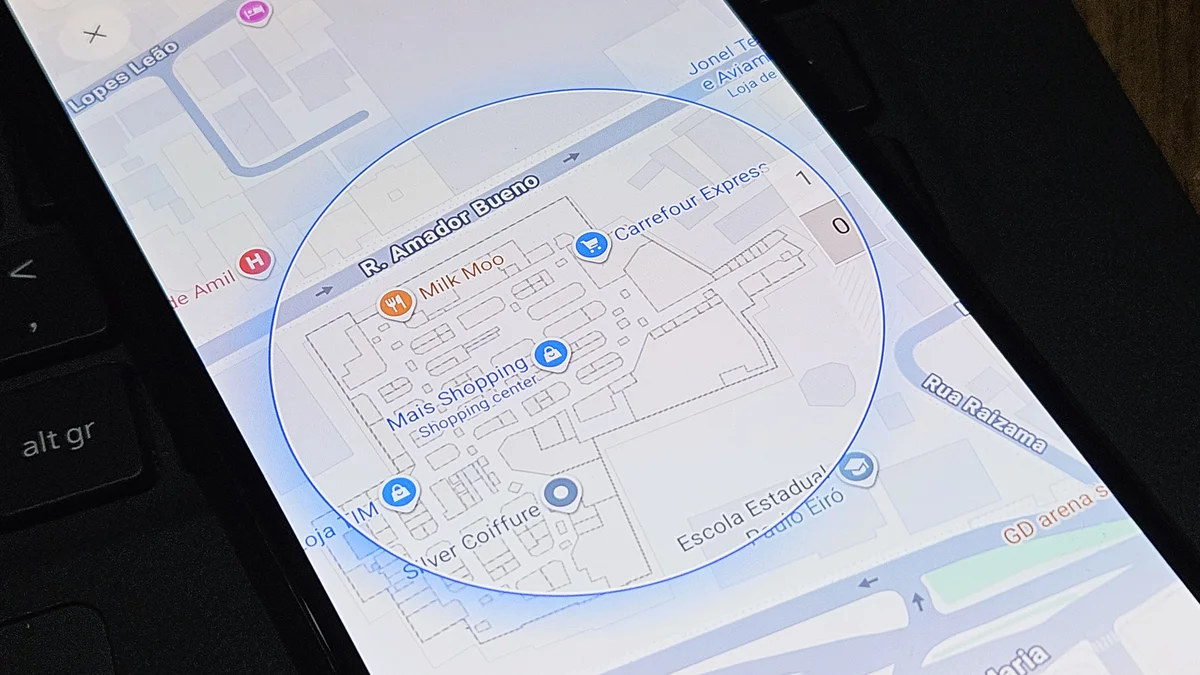
The tool is useful for those who want to find restaurants, tourist attractions, shops or other places of interest without just having to enter the name of a city or neighborhood. When opening the feature, Gemini shows a map of the cell phone’s current region with a circular area highlighted. You can drag the map, zoom in or out to position the area over the location you want to search.
You can also search for another address or region using the magnifying glass icon in the top right corner. Once you find the location you want, tap “Explore this area”. Gemini automatically adds the “Map Area” label to the text box, indicating that the selected region will be part of the conversation context. From there, just ask the question or send an instruction, such as asking for nearby restaurants, tourist attractions or interesting places to visit.
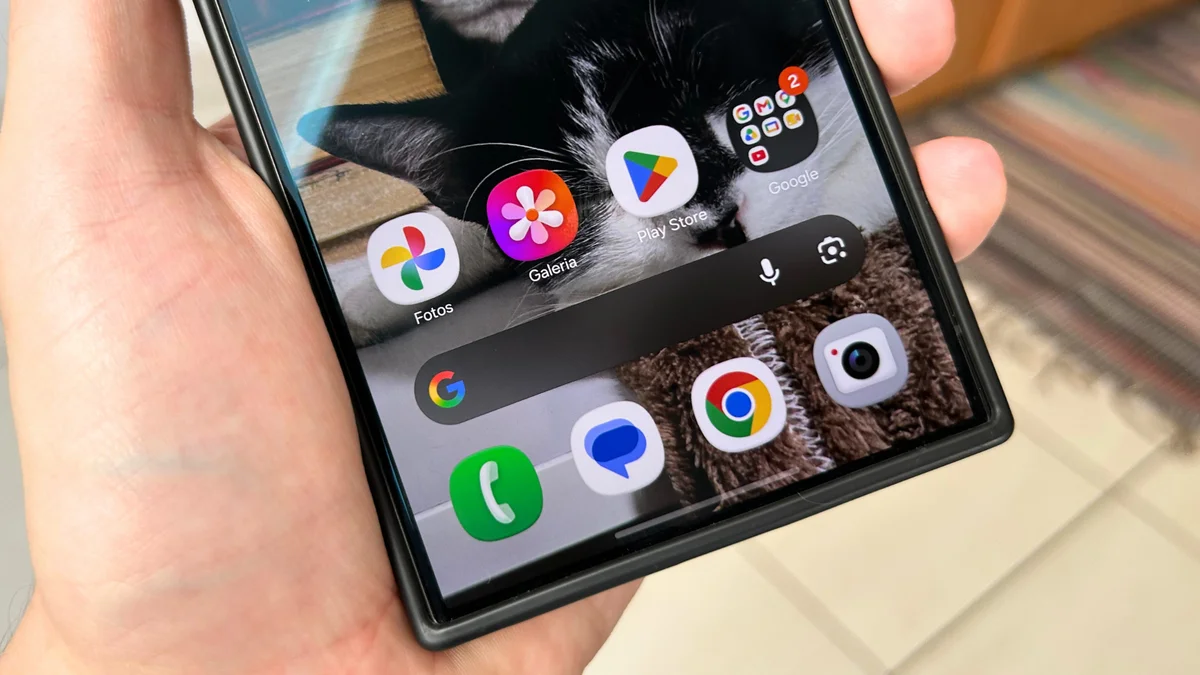
The “Map” feature is now available in the Gemini apps for Android and iOS, but has not yet reached the web version. The tool appears in the menu opened by the “+” button, next to the Photos, Camera, Avatar, Files, Drive and Notebooks options. If you don’t want to add a region to the conversation, just tap the “X” button to close the map.
Check out the step-by-step guide to start using the map on Gemini:
Scroll through the carousel of options until you find “Map”;
Allow Gemini to access your location;
Drag the map and adjust the zoom until you find the desired region;
Silicon Dispatch Strategic Takeaways
- Desk Alignment: Verified dispatch within the AI & Emerging Tech pillar.
- Technical Verification: Hardware and software specifications corroborated against manufacturer roadmaps.
- Market Impact: Analysis tailored for North American enterprise decision-makers and high-performance tech enthusiasts.
Affiliate Disclosure: Articles published by Silicon Dispatch may include verified affiliate partner links. If you purchase through these links, we may earn an affiliate commission at no additional cost to you.